> ## Documentation Index
> Fetch the complete documentation index at: https://docs.restauric.com/llms.txt
> Use this file to discover all available pages before exploring further.
# Add Ingredient
> Add new ingredients to track stock levels and usage in your restaurant.
This guide explains how to add a new ingredient.
> **Prerequisite**\
> Ensure you have access to inventory management.\
> Learn how to log in here: [Login Guide](/index)\
> Learn how to assign role and premission here: [**Assigning Roles & Permissions**](/assigning-user-role-permissions)**.**
## Add Ingredient
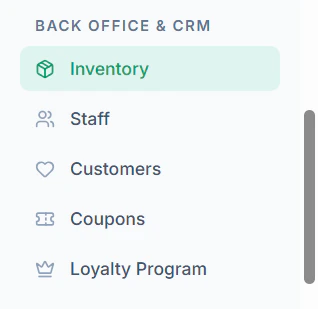
1. Navigate to **Inventory** menu in sidebar
 2. Click **+ Add Ingredient** on the top right side
 3. Enter details:
* **Ingredient Name**
* **Category**
* **Unit** (kg, pcs, liters)
* **Absolute Stock**
* **Alert Threshold**
* **Initial Cost** (Optional)
3. Enter details:
* **Ingredient Name**
* **Category**
* **Unit** (kg, pcs, liters)
* **Absolute Stock**
* **Alert Threshold**
* **Initial Cost** (Optional)
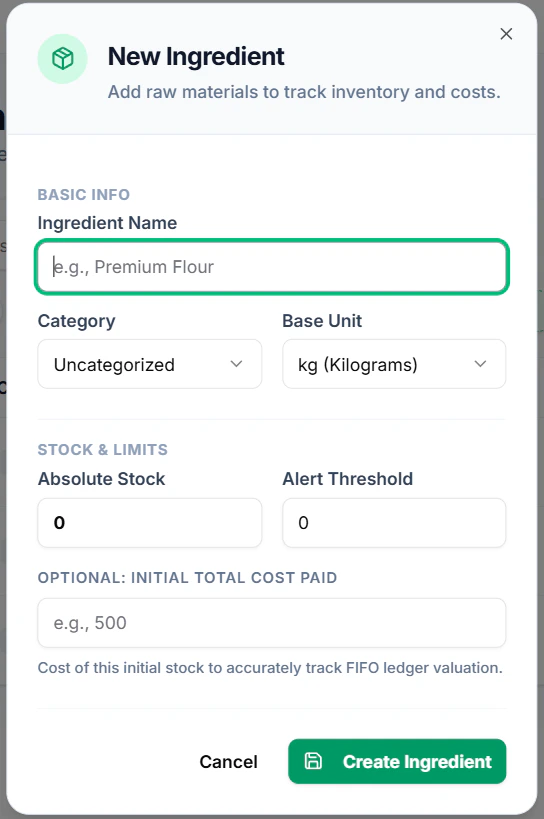 4. Click **Create Ingredient**