> ## Documentation Index
> Fetch the complete documentation index at: https://docs.restauric.com/llms.txt
> Use this file to discover all available pages before exploring further.
# Deleting a Staff
> Remove or deactivate staff members to control system access while maintaining operational security and data integrity.
This guide explains how to delete or deactivate a staff member from the system.
> **Prerequisite**\
> Ensure you have admin access to manage staff.\
> Learn how to set up staff here: [Staff Setup Guide](/staff-setup-guide)
## Deleting a Staff
Follow these steps to remove or deactivate a staff member:
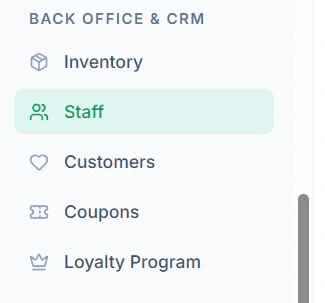
1. Navigate to **Staff** in the left side submenu below **BACK OFFICE & CRM**
 2. Locate the staff member you want to remove
 3. Click on the **Delete Icon**
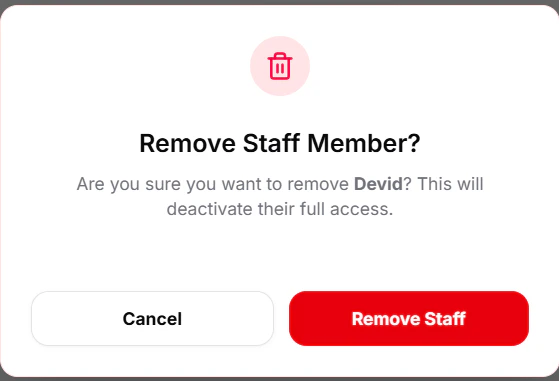
4. Confirm the action when prompted
3. Click on the **Delete Icon**
4. Confirm the action when prompted
 ### Important Notes
* Deleting a staff member will remove their system access immediately
* Ensure no active operations (orders/shifts) are assigned before removal
### Important Notes
* Deleting a staff member will remove their system access immediately
* Ensure no active operations (orders/shifts) are assigned before removal