> ## Documentation Index
> Fetch the complete documentation index at: https://docs.restauric.com/llms.txt
> Use this file to discover all available pages before exploring further.
# Serve Ready Orders & Clear Payment
> Handle ready orders by serving customers and completing payment efficiently.
This guide explains how to process ready orders.
> **Prerequisite**\
> Ensure orders are marked ready from kitchen or Orders Management.\
> Learn how to send orders here:
>
> 1. [Kitchen Order Management](/kitchen-order-management)
> 2. Kitchen Guide
## Serve & Complete Payment
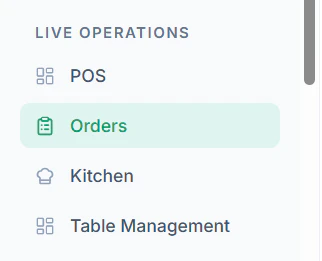
1. Navigate to **Orders** from the dashboard
 2. Navigate to **Ready Tab View**
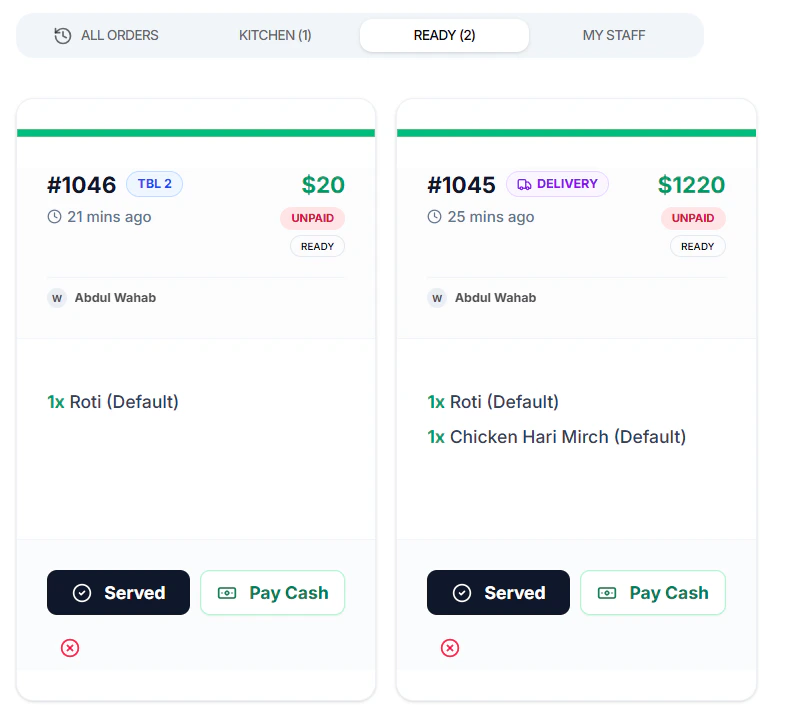 3. Click **Served** when order is delivered
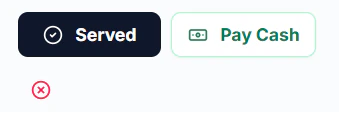 4. Click **Pay Cash** when if received payment
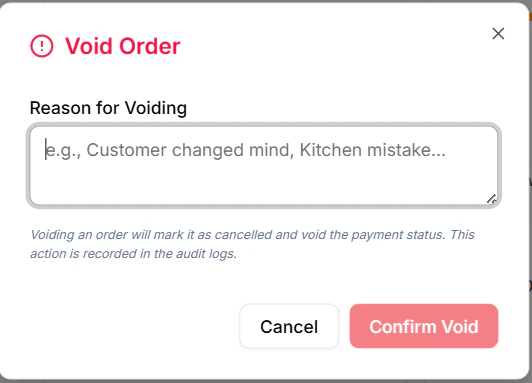
5. Click **Cross** to void the order
4. Click **Pay Cash** when if received payment
5. Click **Cross** to void the order
 ***
## Tips
* Always verify items before serving
***
## Tips
* Always verify items before serving