> ## Documentation Index
> Fetch the complete documentation index at: https://docs.restauric.com/llms.txt
> Use this file to discover all available pages before exploring further.
# Staff Setup Guide
> Create and manage staff accounts, assign roles, and control access to your restaurant management system.
This guide helps you set up staff members, assign roles, and manage access permissions for your restaurant operations.
> **Prerequisite**\
> Ensure you are logged in as an **Admin** with permission to manage staff.\
> Learn how to log in here: [Login Guide](/index)
## Add New Staff
Follow these steps to create a staff account:
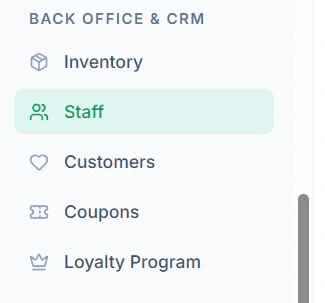
1. Go to **Staff** in the left side submenu Below **BACK OFFICE & CRM**
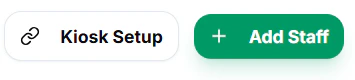
 2. Click **Add Staff**
 3. Enter staff details:
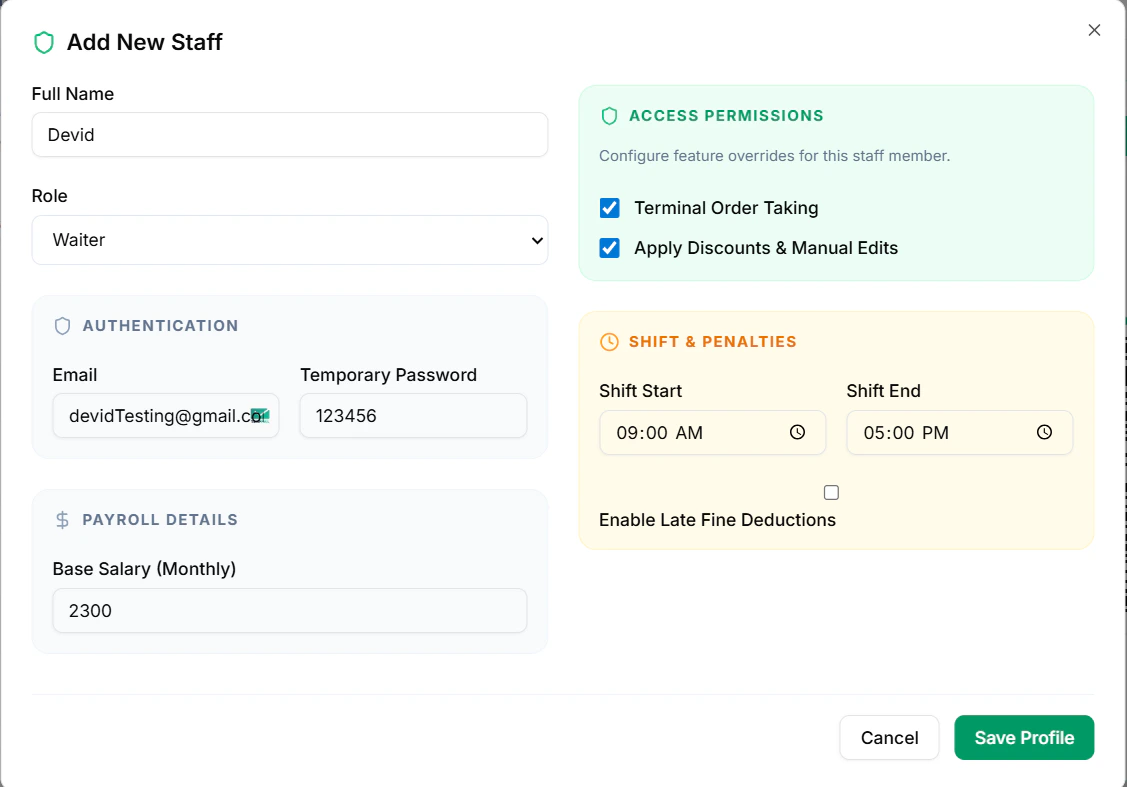 * **Full Name**
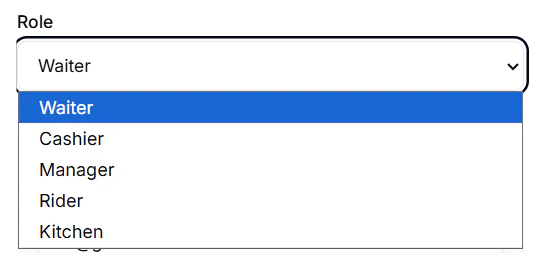
* Assign a **Role** (e.g., Admin, Manager, Cashier)
* **Full Name**
* Assign a **Role** (e.g., Admin, Manager, Cashier)
 * **Email Address**
* **Temporary Password**
* **Base Salary**
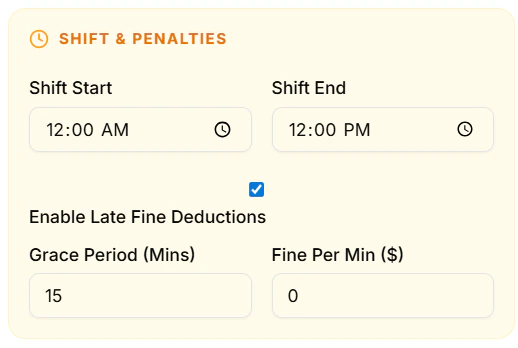
* **Enable Late Fine Deduction** (optional)
* **Email Address**
* **Temporary Password**
* **Base Salary**
* **Enable Late Fine Deduction** (optional)
 4. Click **Save Profile**
***
## Assign Roles & Permissions
Control what each staff member can access:
1. Navigate to **Roles & Permissions**
2. Select or create a **Role**
3. Enable/disable permissions (POS, Orders, Reports, etc.)
4. Assign the role to staff members
5. Save changes
***
## Edit or Remove Staff
1. Go to **Staff Management**
2. Select a staff member
3. Click **Edit** to update details or role
4. Click **Delete / Deactivate** to remove access
***
## POS Access (Optional)
You can allow staff to log in directly to POS:
1. Enable **POS Access** for the staff member
2. Assign a **POS PIN**
3. Save changes
👉 Learn more: [POS Login Guide](/docs/pos-login)
***
## Tips
* Assign roles carefully to avoid unauthorized access
* Use **POS PIN login** for faster operations at counters
* Regularly review staff access and remove inactive users
4. Click **Save Profile**
***
## Assign Roles & Permissions
Control what each staff member can access:
1. Navigate to **Roles & Permissions**
2. Select or create a **Role**
3. Enable/disable permissions (POS, Orders, Reports, etc.)
4. Assign the role to staff members
5. Save changes
***
## Edit or Remove Staff
1. Go to **Staff Management**
2. Select a staff member
3. Click **Edit** to update details or role
4. Click **Delete / Deactivate** to remove access
***
## POS Access (Optional)
You can allow staff to log in directly to POS:
1. Enable **POS Access** for the staff member
2. Assign a **POS PIN**
3. Save changes
👉 Learn more: [POS Login Guide](/docs/pos-login)
***
## Tips
* Assign roles carefully to avoid unauthorized access
* Use **POS PIN login** for faster operations at counters
* Regularly review staff access and remove inactive users