> ## Documentation Index
> Fetch the complete documentation index at: https://docs.restauric.com/llms.txt
> Use this file to discover all available pages before exploring further.
# Start Cooking Order
> Manage incoming orders in the kitchen by starting preparation and marking items as ready for serving.
This guide helps kitchen staff update order status from **pending** to **preparing** for service.
> **Prerequisite**\
> Ensure orders are sent to the kitchen from POS.\
> Learn how to send orders here:
>
> 1. [Dine-In Order Guide](/dine-in-order)
> 2. [Takeaway Order Guide](/takeaway-order)
> 3. [Delivery Order Guide](/delivery-order)
## Start Cooking an Order
Follow these steps to begin preparation:
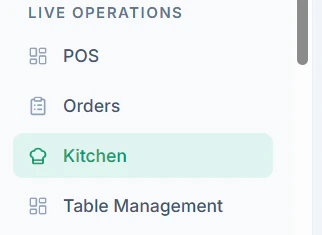
1. Navigate to **Kitchen Page / KDS (Kitchen Display System)**
 2. You can see all **Pending Orders**
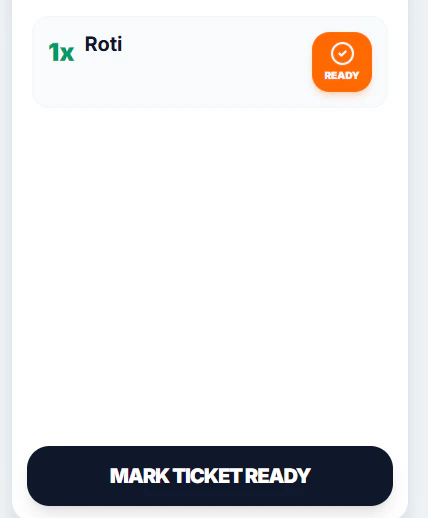
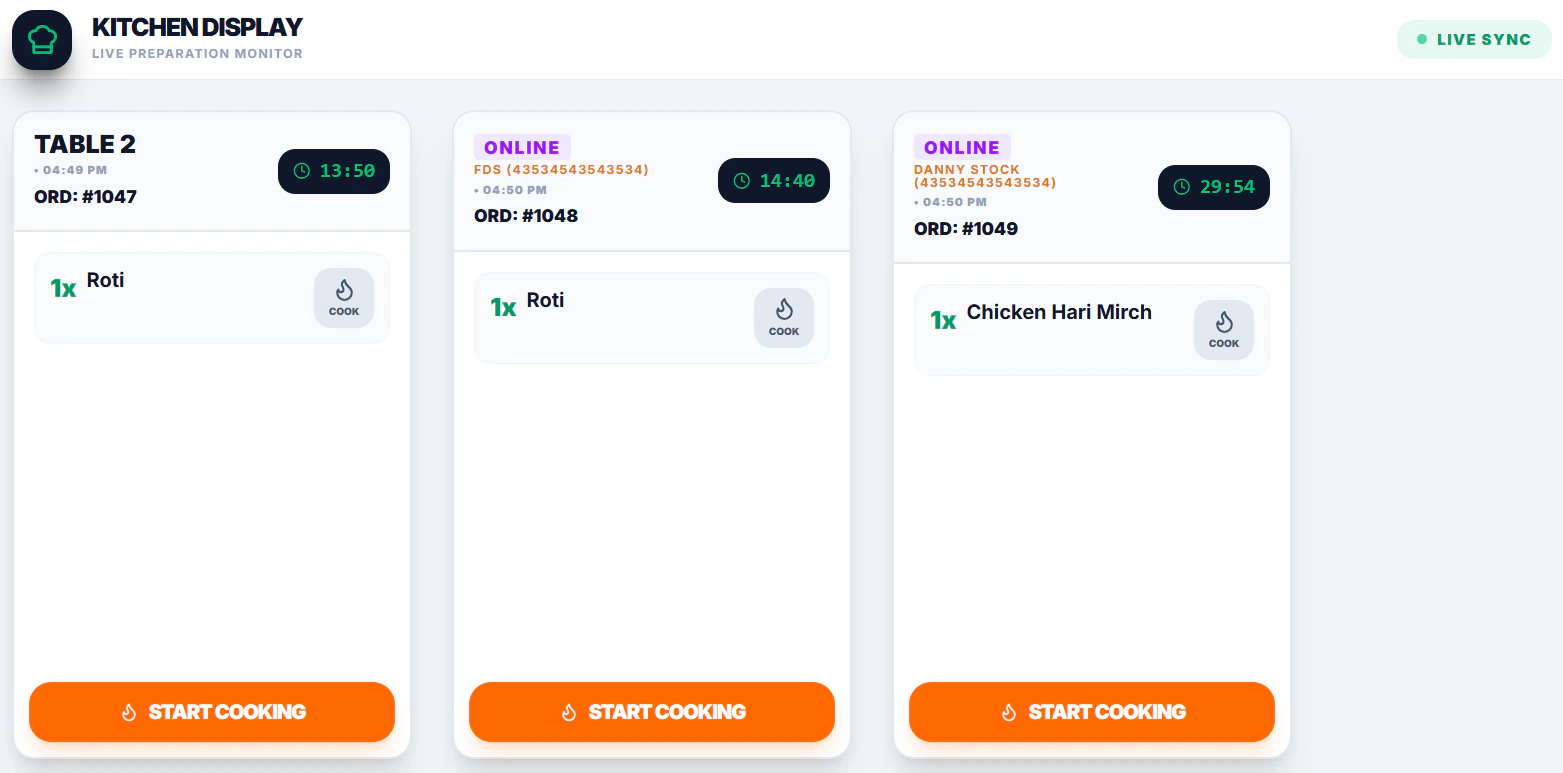 3. Click **Start Cooking**
 ## Tips
* Update status in real-time to avoid delays
* Use the kitchen screen to prioritize urgent orders
## Tips
* Update status in real-time to avoid delays
* Use the kitchen screen to prioritize urgent orders