> ## Documentation Index
> Fetch the complete documentation index at: https://docs.restauric.com/llms.txt
> Use this file to discover all available pages before exploring further.

# Takeaway Order

> **Prerequisite**\
> Ensure you are logged in as an **Admin** with permission to take order.\
> Learn how to log in here: [Login Guide](/index)

Follow these steps to create a takeaway order:

1. Select a **TAKEAWAY** at the top

   <Frame>
     <img src="https://mintcdn.com/axon-d19cba9f/DloYekgw1guZhM5u/images/image-22.png?fit=max&auto=format&n=DloYekgw1guZhM5u&q=85&s=c10fb3a8e9d7eae2f44c2d270f2a55e1" alt="Image" width="654" height="92" data-path="images/image-22.png" />
   </Frame>
2. Click on **+ New Takeaway**
   <Frame>
     <img src="https://mintcdn.com/axon-d19cba9f/DloYekgw1guZhM5u/images/image-28.png?fit=max&auto=format&n=DloYekgw1guZhM5u&q=85&s=2ade8c22524636c4580f4e8a12513800" alt="Image" width="213" height="74" data-path="images/image-28.png" />
   </Frame>
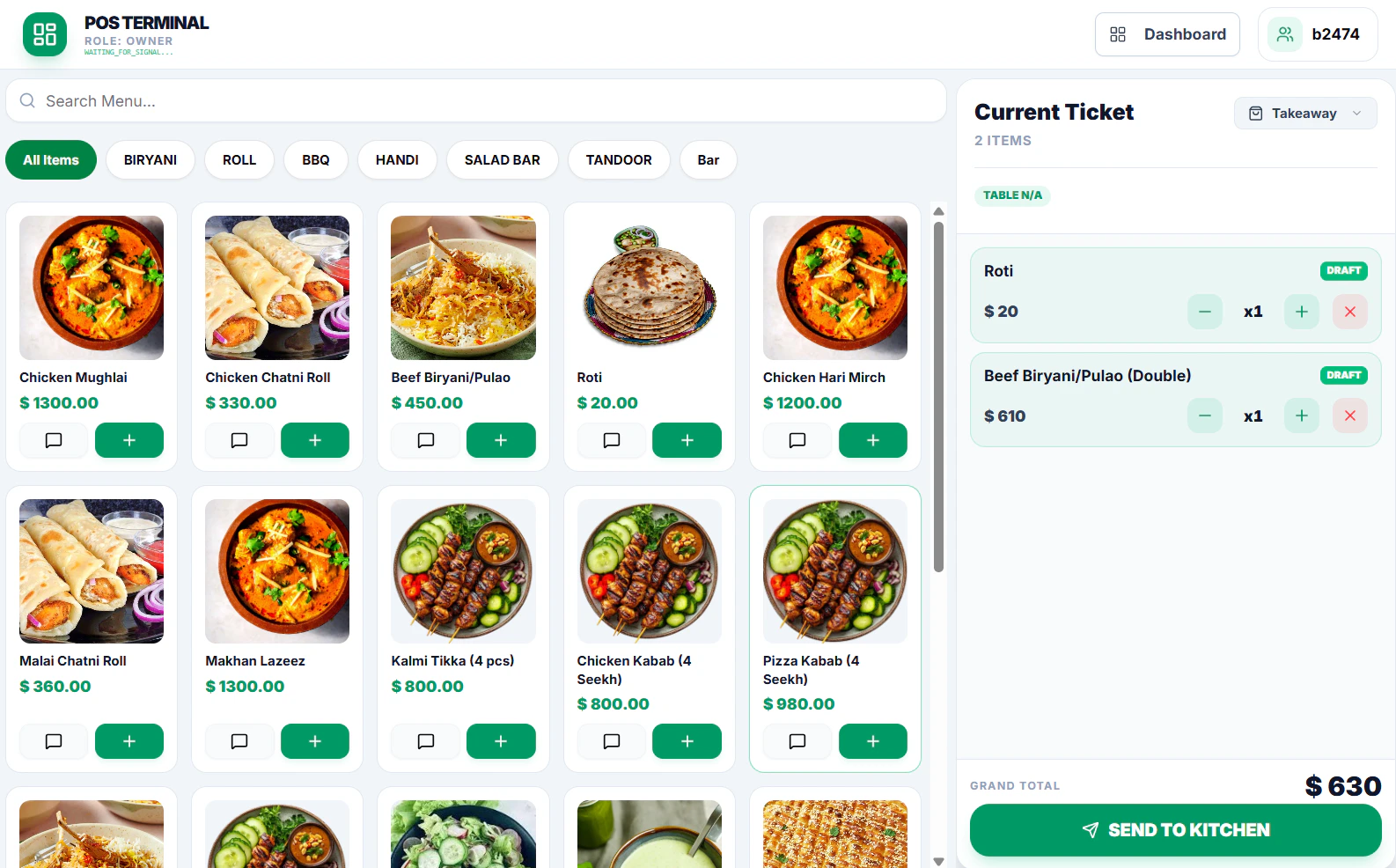
3. Add items from the **Menu**
   <Frame>
     <img src="https://mintcdn.com/axon-d19cba9f/DloYekgw1guZhM5u/images/image-27.png?fit=max&auto=format&n=DloYekgw1guZhM5u&q=85&s=cc236fb345398a977369007b5e1eb26c" alt="Image" width="1586" height="986" data-path="images/image-27.png" />
   </Frame>
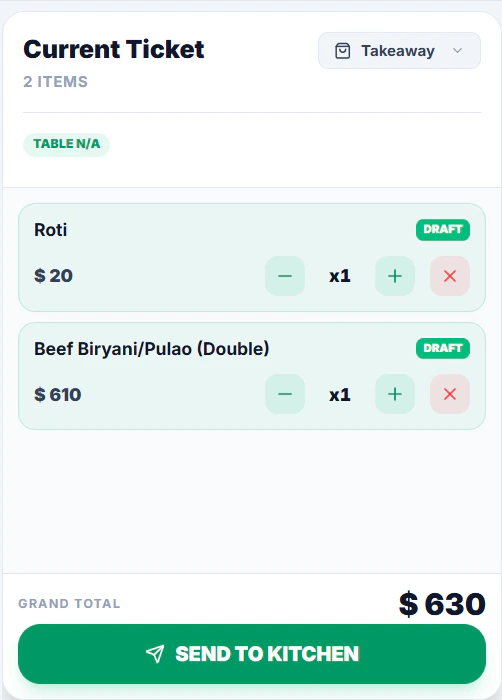
4. Click **Send to Kitchen** to confirm the order
   <Frame>
     <img src="https://mintcdn.com/axon-d19cba9f/DloYekgw1guZhM5u/images/image-23.png?fit=max&auto=format&n=DloYekgw1guZhM5u&q=85&s=e28c61489540f3a512b94c2ad30b95ea" alt="Image" title="Image" className="mx-auto" style={{ width:"64%" }} width="502" height="700" data-path="images/image-23.png" />
   </Frame>
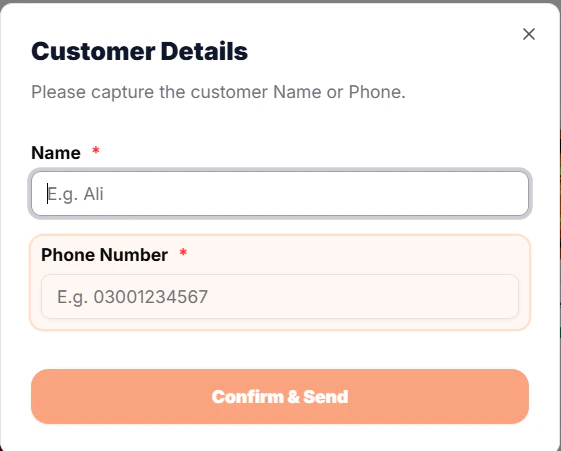
5. Add **Customer Details (Mandatory)** and click **Confirm & Send**
   <Frame>
     <img src="https://mintcdn.com/axon-d19cba9f/DloYekgw1guZhM5u/images/image-29.png?fit=max&auto=format&n=DloYekgw1guZhM5u&q=85&s=e7be571f12347457b71b16937cc42865" alt="Image" width="561" height="451" data-path="images/image-29.png" />
   </Frame>
6. Click on **Handover** to Open checkout window

   <Frame>
     <img src="https://mintcdn.com/axon-d19cba9f/eC9gnzf4XlzOIgNE/images/image-30.png?fit=max&auto=format&n=eC9gnzf4XlzOIgNE&q=85&s=7368a3b5584eb03b87f7b45ad26b19a3" alt="Image" width="1447" height="140" data-path="images/image-30.png" />
   </Frame>
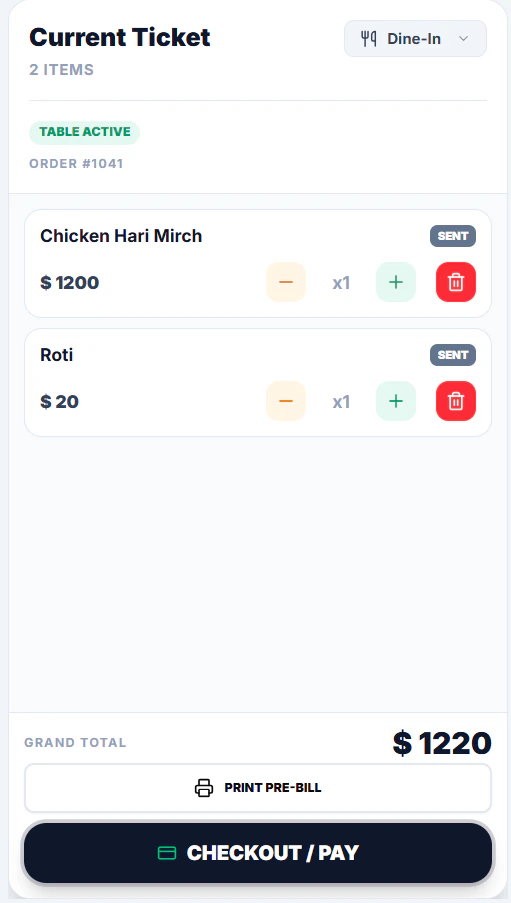
7. For Payment Click **Checkout / Pay**
   <Frame>
     <img src="https://mintcdn.com/axon-d19cba9f/oHiT_DA6sXWElF4n/images/image-10.png?fit=max&auto=format&n=oHiT_DA6sXWElF4n&q=85&s=980a412009f923f3a1970d5f061d80e7" alt="Image" width="511" height="903" data-path="images/image-10.png" />
   </Frame>
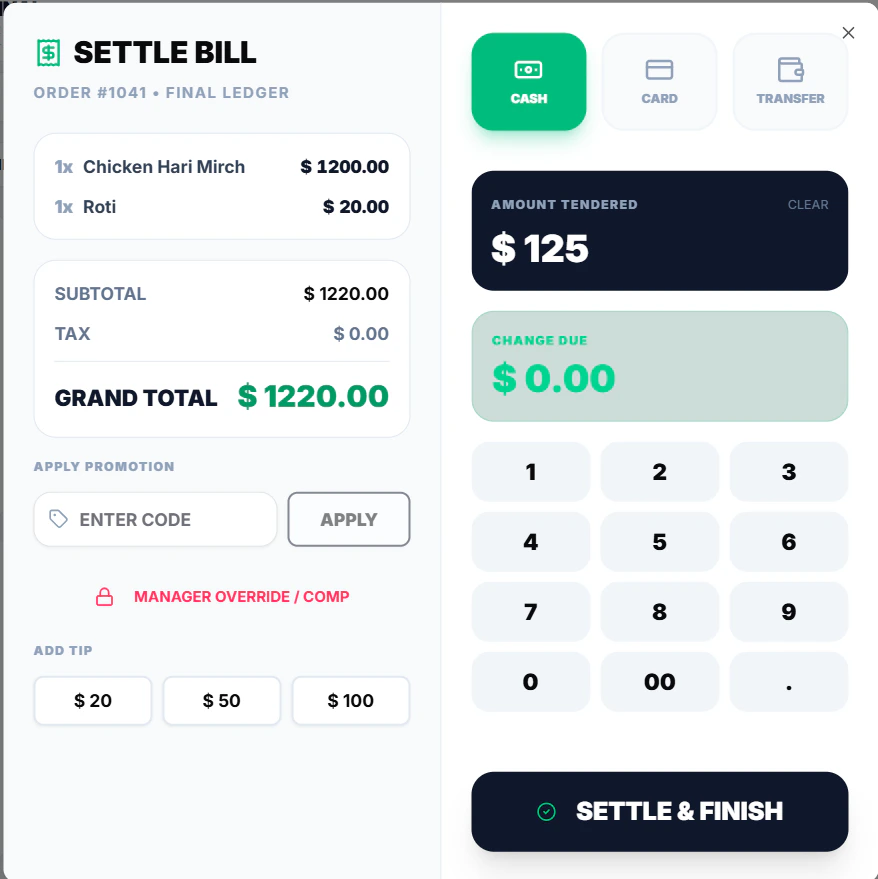
8. Select **Payment Method** Option (CASH, CARD, Bank Transfer)
   <Frame>
     <img src="https://mintcdn.com/axon-d19cba9f/oHiT_DA6sXWElF4n/images/image-11.png?fit=max&auto=format&n=oHiT_DA6sXWElF4n&q=85&s=18fd0f3c2599ede5eee5df8ce3c0a974" alt="Image" width="878" height="879" data-path="images/image-11.png" />
   </Frame>
9. **Click & Finish** to Settle Bill
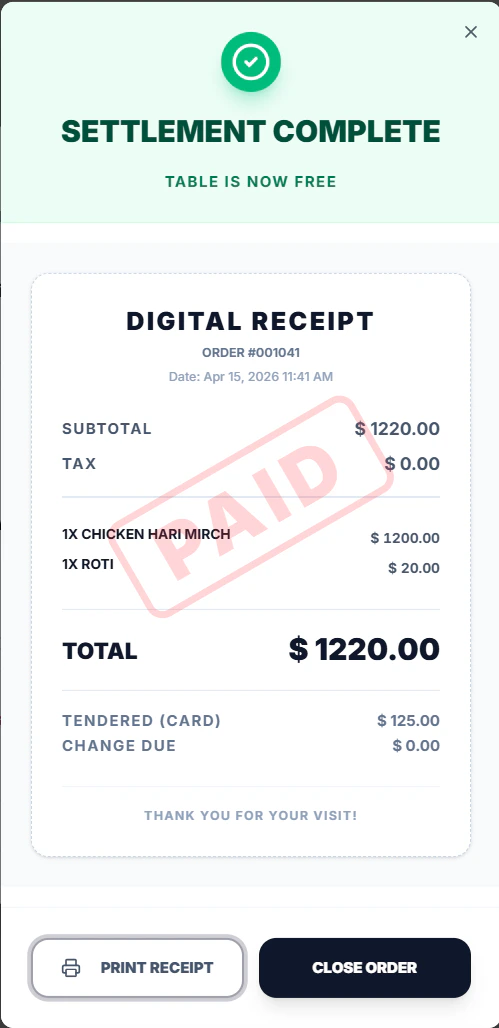
10. **Print Bill** and **Close Order**
    <Frame>
      <img src="https://mintcdn.com/axon-d19cba9f/oHiT_DA6sXWElF4n/images/image-12.png?fit=max&auto=format&n=oHiT_DA6sXWElF4n&q=85&s=7573ac86e72e790f512b0a3022561300" alt="Image" width="499" height="1028" data-path="images/image-12.png" />
    </Frame>