
Prerequisite
Ensure staff members are already created in the system.
Learn how to add new staff here: Staff Setup Guide
Update Role & Permissions for Existing Staff
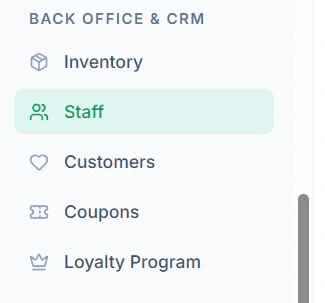
- Navigate to Staff in the left side submenu Below BACK OFFICE & CRM
- Click on Edit Icon to edit an existing staff profile

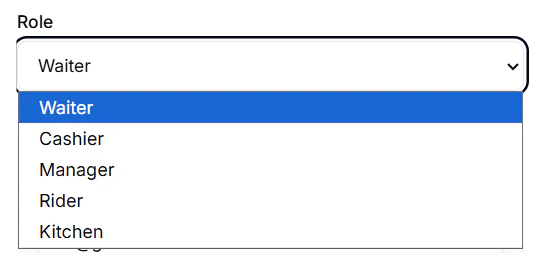
- Update the Role from the dropdown (e.g., Admin, Manager, Cashier)
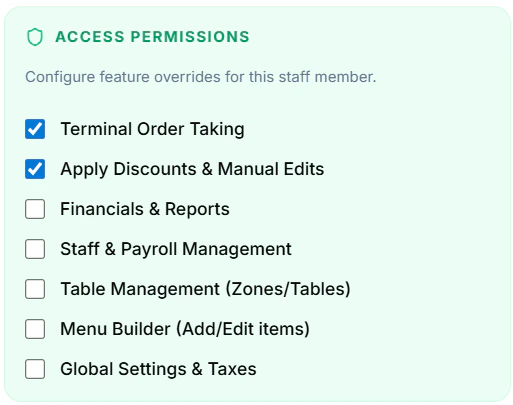
- Assign Access Permissions based on role
- Click Save Profile
Understanding Permissions
Permissions control what actions a staff member can perform:- POS Access – Create and manage orders
- Orders Management – View and update order status
- Inventory – Manage stock and items
- Reports – Access sales and performance reports
- Staff Management – Add/edit/remove staff
Tips
- Use predefined roles for faster setup
- Grant only necessary permissions (principle of least access)
- Regularly review and update staff roles