
Prerequisite
Ensure staff have table management access to configure floor settings.
Learn how to set up tables here: Assigning Roles & Permissions.
Delete a Table
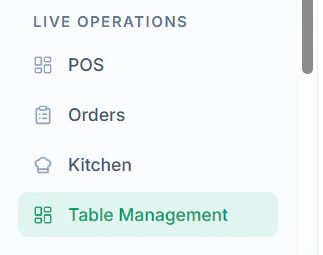
Follow these steps to remove a table:- Navigate to Table Management from the dashboard
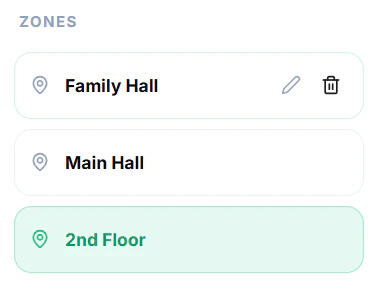
- Select the Zone where the table exists
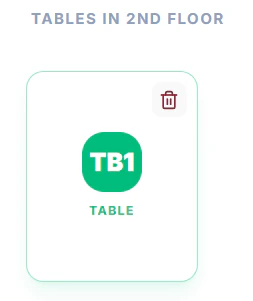
- Locate the table you want to delete
- Click on the Delete Icon on the table
- Confirm the action when prompted
Important Notes
- Deleting a table will remove it from the POS immediately
- Ensure no active orders are assigned to the table
Tips
- Keep your table layout updated regularly
- Avoid deleting frequently used tables unnecessarily