
Prerequisite
Ensure you are logged in as an Admin with permission to manage staff.
Learn how to log in here: Login Guide
Add New Staff
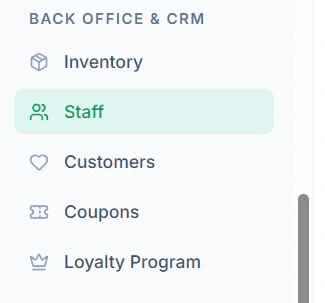
Follow these steps to create a staff account:- Go to Staff in the left side submenu Below BACK OFFICE & CRM
- Click Add Staff
- Enter staff details:
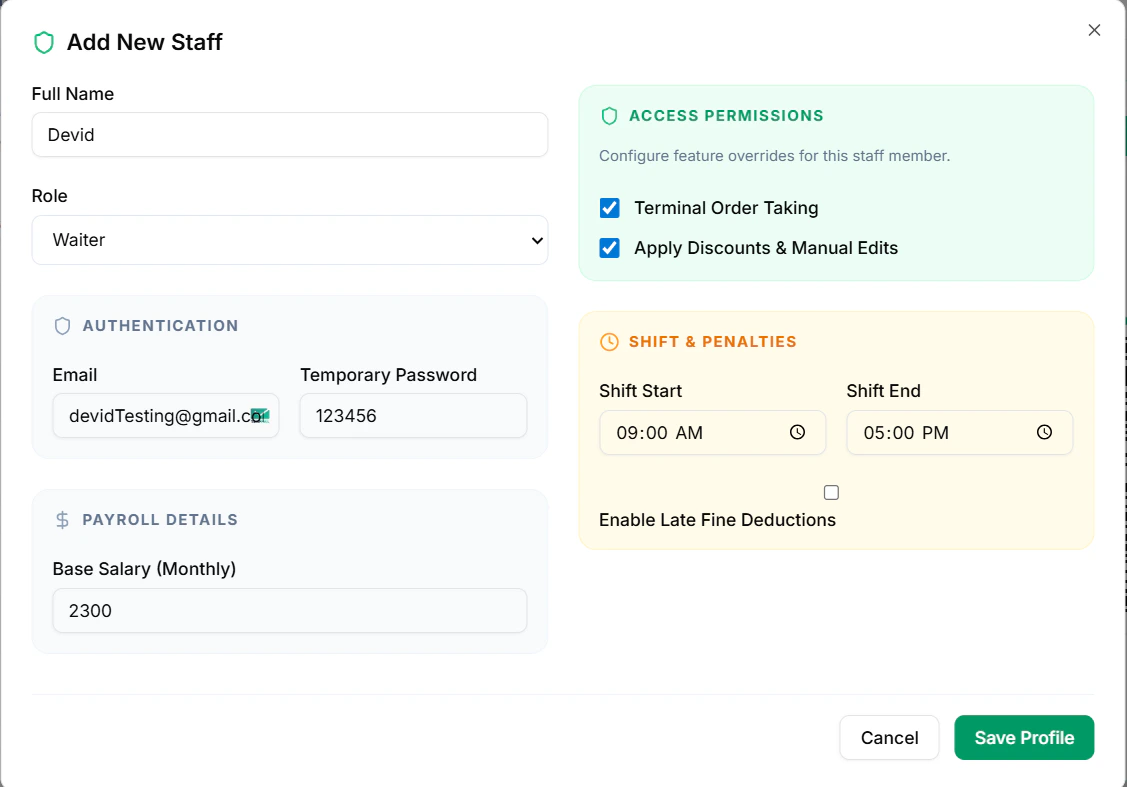
- Full Name
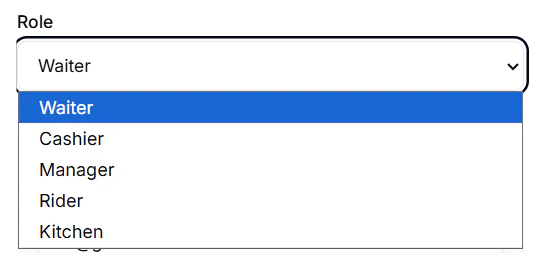
- Assign a Role (e.g., Admin, Manager, Cashier)
- Email Address
- Temporary Password
- Base Salary
- Enable Late Fine Deduction (optional)
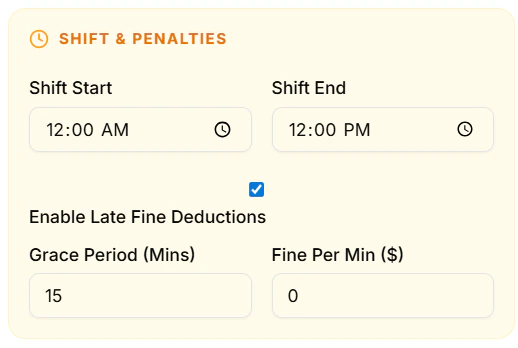
- Click Save Profile
Assign Roles & Permissions
Control what each staff member can access:- Navigate to Roles & Permissions
- Select or create a Role
- Enable/disable permissions (POS, Orders, Reports, etc.)
- Assign the role to staff members
- Save changes
Edit or Remove Staff
- Go to Staff Management
- Select a staff member
- Click Edit to update details or role
- Click Delete / Deactivate to remove access
POS Access (Optional)
You can allow staff to log in directly to POS:- Enable POS Access for the staff member
- Assign a POS PIN
- Save changes
Tips
- Assign roles carefully to avoid unauthorized access
- Use POS PIN login for faster operations at counters
- Regularly review staff access and remove inactive users